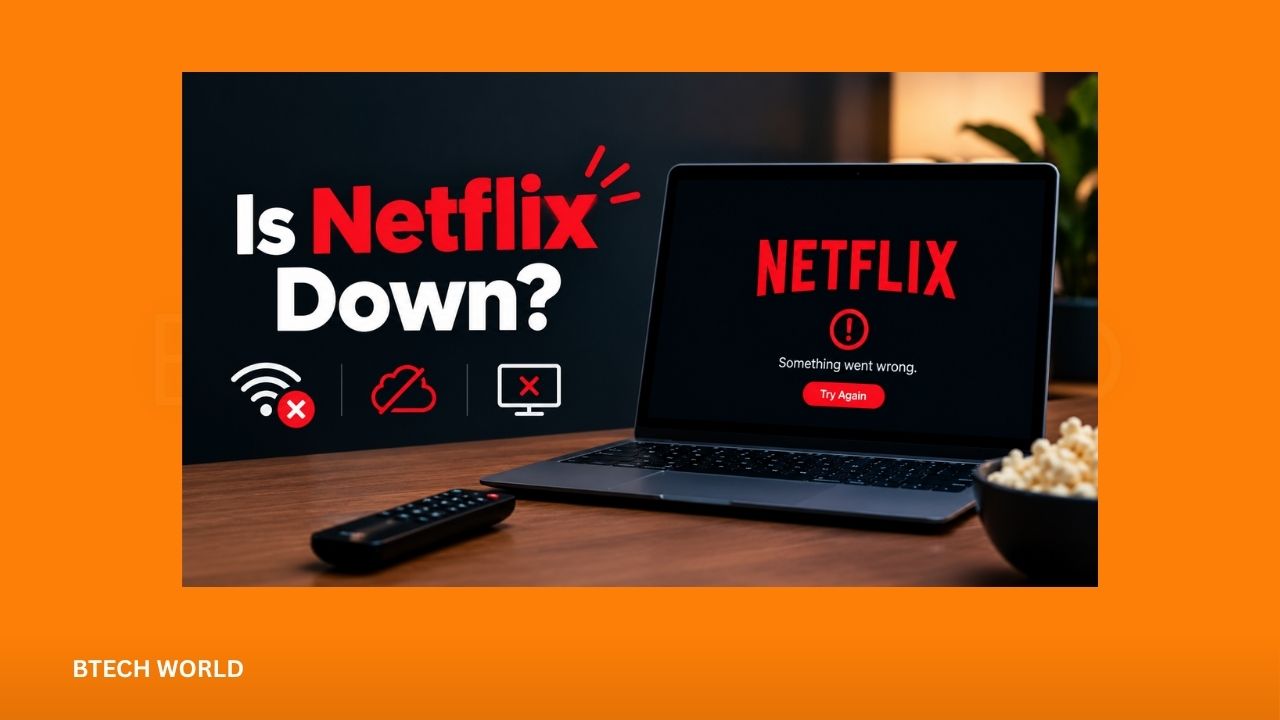
Is Netflix Down? How to Check Server Status and Fix Streaming Issues

Netflix is one of the most popular streaming platforms, but occasional technical problems can interrupt your favorite shows and movies. If Netflix stops loading, displays an error message, or keeps buffering, you may wonder whether the service is down or the problem is coming from your device. Fortunately, a few simple checks can help you identify the cause.
Before changing your settings, check Netflix’s official service status page. If the service is operating normally, your internet connection, app, browser, or streaming device may be responsible. This guide explains how to check Netflix server status and fix common streaming problems on smart TVs, smartphones, computers, and other supported devices.
Is Netflix Down Right Now?
The first step is to determine whether Netflix is experiencing a widespread outage. Sometimes, a temporary server problem affects thousands of users simultaneously. In other cases, Netflix works normally, but a local network or device issue prevents certain users from streaming.
Netflix provides an official status page that reports known service interruptions. Visit the Netflix Help Center and open its “Is Netflix Down?” page to check for information about reported outages. You can also review independent outage trackers to see whether other users are reporting similar problems.
If several sources show a possible outage, wait a few minutes and check again. Avoid repeatedly reinstalling the app or changing your network settings when the problem appears to affect Netflix itself.
How to Check Netflix Server Status
You can investigate Netflix availability through several straightforward methods. Using more than one source can help you distinguish a genuine service interruption from an isolated technical problem.
Check the Official Netflix Status Page
Netflix’s official status page is the best starting point because it provides information about recognized interruptions to its streaming service. If Netflix identifies a known problem, the page may include a description of the issue.
If no interruption appears, that does not guarantee every Netflix feature is working perfectly. Some problems affect specific devices, regions, accounts, or features without causing a complete outage.
Check Independent Outage Trackers
Websites such as Downdetector and other service-monitoring platforms collect user reports and monitor website availability. A sudden increase in reports can indicate that Netflix users are experiencing problems.
However, individual reports do not automatically confirm an outage. A local internet provider might be experiencing difficulties, or users could be reporting unrelated issues. Compare the reports with Netflix’s official information before drawing a conclusion.
Test Netflix on Another Device
Try opening Netflix on a smartphone, computer, smart TV, or another supported device. If Netflix works on one device but not another, the problem is more likely related to the affected device, app, or settings.
You can also switch from Wi-Fi to mobile data when possible. If Netflix works over mobile data but fails on your home network, investigate your router or internet connection.
Common Reasons Netflix Stops Working
Netflix problems can have several causes, and identifying the symptoms can help you choose the right solution.
Internet Connection Problems
An unstable or slow internet connection can prevent Netflix from loading content or maintaining smooth playback. You might see a loading screen, repeated buffering, or a message indicating that the service cannot connect.
Other websites may also load slowly when your connection is unstable. Test your internet by opening another website or running a connection speed test. If several services are affected, contact your internet provider if restarting your network does not help.
Netflix Server Interruptions
A server-side problem can affect sign-ins, playback, or access to certain parts of the platform. These issues are generally outside your control and require Netflix to restore normal service.
When a widespread outage is confirmed, waiting is usually the most practical option. Keep checking the official status page for updates instead of repeatedly resetting your device.
Outdated Netflix App
An older version of the Netflix app may contain bugs or compatibility problems. This can lead to crashes, playback failures, or screens that never finish loading.
Check your device’s app store or built-in application manager for updates. Installing the latest available version may resolve problems caused by outdated software.
Device or Browser Issues
Temporary app data, browser extensions, or outdated device software can interfere with streaming. A smart TV might freeze on the Netflix loading screen, while a computer browser could display a playback error.
Restarting the application, updating the browser, or rebooting the device can often resolve these issues. If the problem continues, test Netflix through another supported device or browser.
How to Fix Netflix When It Is Not Working
If there is no confirmed outage, try these troubleshooting steps in order. Test Netflix after each step so you can identify which change solves the problem.
1. Refresh Netflix
Close Netflix completely and open it again. On a computer, refresh the webpage or close and reopen the browser. On a phone or television, exit the app before launching it again.
Simply returning to the home screen may not fully close the application on every device. If the problem continues, restart the device itself.
2. Restart Your Internet Router
A router restart can resolve temporary connection problems. Turn off your streaming device, unplug your modem and router from their power sources, and wait about 30 seconds.
Reconnect the equipment and allow it to establish an internet connection. Then turn on your device and try Netflix again. Some routers need additional time to reconnect.
3. Check Your Internet Speed
Netflix needs a stable connection for reliable streaming. Netflix recommends at least 3 Mbps for 720p HD quality, 5 Mbps for 1080p Full HD, and 15 Mbps for 4K Ultra HD streaming.
These figures are recommended minimum speeds for the respective quality levels. Other devices using the same network may reduce the bandwidth available to Netflix.
You can test your connection using Fast.com. If the speed is consistently low, move closer to your router, reduce competing network activity, or contact your internet provider.
4. Update the Netflix App
Open your device’s app store and check whether an update is available. Install the update, then restart Netflix.
If your smart TV or streaming box has pending system updates, install those as well. Older operating systems can sometimes create compatibility problems with streaming applications.
5. Sign Out and Sign In Again
If Netflix opens but fails to play content or displays account-related errors, signing out and back in may help.
Open the Netflix app settings or help menu and select the sign-out option. Sign in again using your account credentials. Make sure you can access your account before attempting this step, especially if you do not have your password readily available.
6. Clear Browser Cache or App Data
On a computer, outdated browser data or problematic extensions may interfere with Netflix. Try opening the service in a private browsing window or another supported browser. You can also clear the browser cache.
On Android devices, clearing the Netflix app cache may help. Menu names vary by device, but the option is generally available under Settings and Apps. Avoid clearing app storage or reinstalling the application unless necessary, because these actions may remove saved settings and require you to sign in again.
7. Disable VPN or Proxy Connections Temporarily
VPNs and proxy services can sometimes interfere with streaming or trigger location-related errors. If you use one, disconnect it temporarily and test Netflix again.
If the service works afterward, review your network configuration. Do not assume that every VPN-related error means Netflix is experiencing an outage.
Fix Netflix Problems on Different Devices
The best solution can depend on where the problem occurs. Device-specific troubleshooting may help when Netflix works elsewhere.
Netflix Not Working on a Smart TV
First, close Netflix and restart your television. If the app remains stuck, unplug the TV for approximately one minute before reconnecting it.
Check for Netflix app updates and television software updates. If the problem persists, sign out and back in when possible. Avoid a factory reset as an early troubleshooting step because it can erase personal settings and installed applications.
Netflix Not Working on an iPhone or Android Phone
Check whether your phone can access other websites and applications. Switch between Wi-Fi and mobile data to determine whether the network is responsible.
Force-close Netflix, reopen it, and check for updates. Restart your phone if the app continues to crash. If necessary, reinstall Netflix through the official app store and sign in again.
Netflix Not Working on a Computer
Check whether Netflix loads in another browser. Temporarily disable browser extensions that might affect playback, and ensure your browser is updated.
If the website opens but videos fail to play, record any error code displayed on the screen. That information can help you identify the specific problem instead of treating it as a general outage.
What Do Common Netflix Errors Mean?
Netflix error messages can provide useful clues about the underlying issue. The exact meaning depends on the error code, device, and circumstances.
| Problem or symptom | Possible cause | What to try |
|---|---|---|
| Netflix keeps loading | Weak connection or app issue | Restart the app and test the network |
| Videos buffer repeatedly | Slow or unstable internet | Test speed and restart the router |
| Login fails | Account or sign-in problem | Verify credentials and account status |
| App crashes | Software or compatibility issue | Update the app and device |
| Black screen during playback | Device, app, or playback issue | Restart the device and test another title |
| Netflix works on mobile data only | Home network problem | Check router settings and contact your ISP if needed |
Do not assume every error means Netflix is offline. Search the exact code in the Netflix Help Center for troubleshooting instructions tailored to your device.
When Should You Contact Netflix Support?
Contact Netflix support if the service remains unavailable on multiple devices, your account displays an unexpected restriction, or the recommended troubleshooting steps do not resolve the problem.
Before contacting support, note the error code, the device you are using, and whether Netflix works on another network. Explain when the problem started and which steps you have already tried.
If several internet services are failing, your internet provider may be better positioned to investigate. If only Netflix is affected and no outage has been reported, Netflix support can help identify account-specific or device-related problems.
Conclusion
When Netflix stops working, the problem does not always mean the streaming service is down. A quick check of the official status page, followed by testing another device or network, can help you identify the likely cause.
If Netflix reports a service interruption, wait for the company to resolve it. Otherwise, restart the app, check your internet connection, install available updates, and review device settings. These simple steps can solve many common streaming problems without requiring complicated changes.
Frequently Asked Questions
1. How can I check if Netflix is down?
Visit Netflix’s official “Is Netflix Down?” page and review independent outage reports. Comparing multiple sources can help you determine whether the problem is widespread.
2. Why is Netflix not working when my internet is fine?
Netflix may be experiencing a service interruption, or your app, browser, account, or device may have a separate issue. Try another device and check Netflix’s official status page.
3. Why does Netflix keep buffering?
Buffering often results from an unstable or slow internet connection. Restart your router, reduce network activity, and run a speed test to check whether your connection meets the requirements for your streaming quality.
4. Will reinstalling Netflix fix the problem?
Reinstalling may help when the app is damaged or experiencing persistent software problems. However, check for an outage and try simpler solutions first. Reinstallation will not resolve a widespread Netflix server problem.
5. What should I do if Netflix is down for everyone?
If a widespread outage is confirmed, wait for Netflix to restore service and check its official status page for updates. Repeatedly restarting your router or reinstalling the app is unlikely to help during a server-side interruption.
Explore More BTECH WORLD