
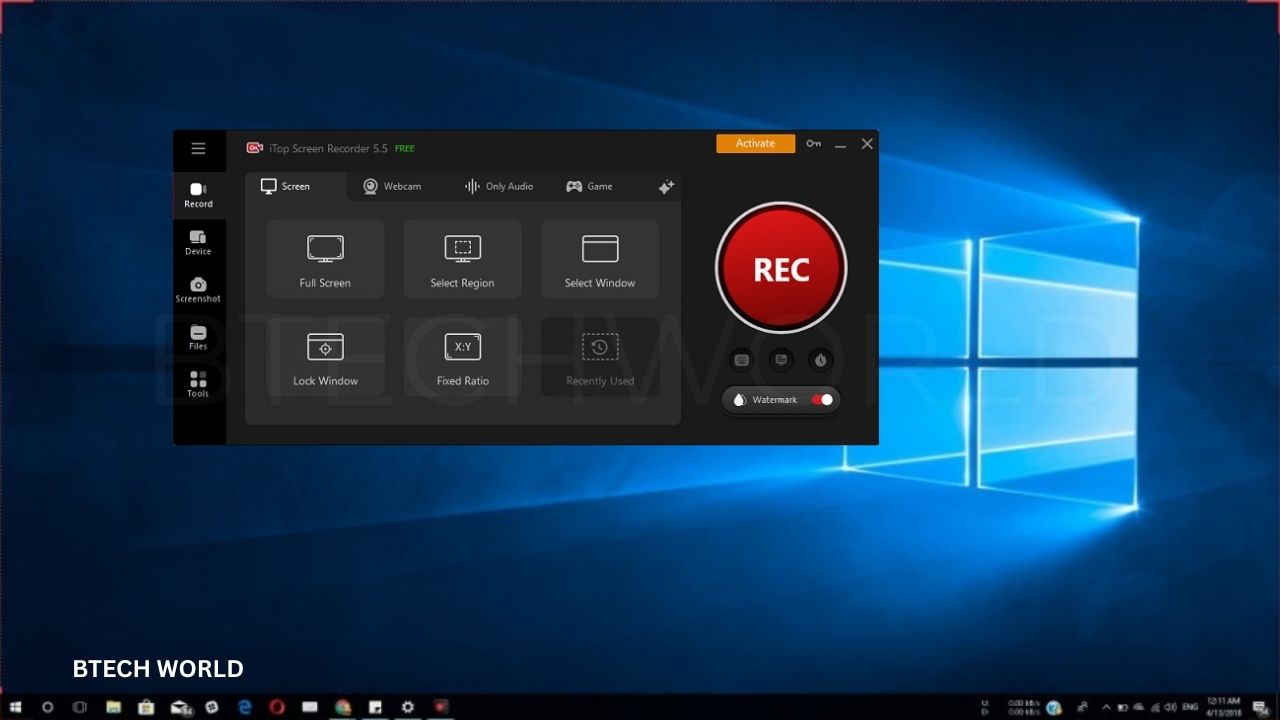
Free Screen Recording Software: Best Tools, Features, and Tips

Several free screen recorders stand out for different reasons. Some provide advanced recording controls, while others focus on convenience and simple sharing. The following comparison covers their main features, supported platforms, strengths, and limitations.
1. OBS Studio Best Overall Free Screen Recorder
OBS Studio is a powerful, open-source screen recording application for Windows, macOS, and Linux. It is especially suitable for gamers, educators, tutorial creators, and professionals who need detailed control over their recordings.
The software can capture displays, individual windows, webcams, microphones, and other supported sources. Users can combine multiple sources into scenes, adjust audio levels, configure recording quality, and save videos locally. OBS Studio also supports live streaming, making it useful for creators who want recording and broadcasting capabilities in one application.
Key features:
- Free and open-source software.
- No built-in recording time limit or watermark.
- Customizable video and audio settings.
- Multiple recording sources and scenes.
- Live streaming support.
- Audio filters and advanced controls.
Limitations: OBS Studio has a learning curve. Beginners may need time to understand sources, scenes, encoders, and audio settings.
2. ShareX Best for Windows Screen Capture
ShareX is a free, open-source capture tool designed primarily for Windows. It combines screenshots, screen recording, GIF creation, annotations, and customizable workflows in one lightweight application.
Its recording features are particularly useful for technical documentation, software demonstrations, and bug reports. Users can capture selected screen areas and automate actions such as saving files or sharing captured content. It also offers tools for editing screenshots and extracting text from images.
Key features:
- Free and open-source.
- Screen capture and GIF recording.
- Screenshot annotation tools.
- Customizable capture workflows.
- Image editing and text recognition.
- Optional file-sharing integrations.
Limitations: ShareX is designed primarily for Windows, and its interface may feel complicated to people who only want a simple video recorder. Advanced video editing is not its main purpose.
3. Xbox Game Bar Best for Quick Windows Recordings
Xbox Game Bar is a built-in Windows feature that makes it easy to capture gameplay and supported application windows. Users can open its recording controls with the Windows key and G, then start or stop a capture without installing another application.
It is convenient for recording short demonstrations, gameplay highlights, and application activity. Because it is integrated into Windows, users can begin recording quickly without configuring a separate recording environment.
Key features:
- Built into supported Windows versions.
- Quick keyboard shortcuts.
- Game and application recording.
- Microphone recording controls.
- Local video saving.
- Simple recording workflow.
Limitations: Xbox Game Bar is not a complete desktop recording studio. Its capture options are more limited than OBS Studio, and it does not provide the same flexibility for complex scenes or production layouts.
4. Windows Snipping Tool Best for Simple Screen Clips
The Snipping Tool in compatible versions of Windows 11 can record a selected area of the screen. It is useful when users need to demonstrate a specific action without capturing their entire desktop.
The workflow is straightforward: open the tool, select the recording function, choose the area, and start capturing. After recording, users can save the clip or move it into another application for additional editing.
Key features:
- Integrated into Windows 11.
- Selected-area recording.
- Simple controls.
- No separate third-party recorder required.
- Convenient for short demonstrations.
Limitations: It provides fewer advanced options than dedicated recording applications. Users who need detailed audio controls, multiple video sources, or complex recording settings may prefer OBS Studio.
5. QuickTime Player Best for Basic Mac Recording
QuickTime Player is a built-in macOS application that supports basic screen recording. It allows Mac users to capture the entire screen or a selected area without installing a dedicated third-party recorder.
Its simple interface makes it suitable for demonstrating software, explaining a process, or capturing short instructional videos. Users can save recordings locally and use another application when more advanced editing is required.
Key features:
- Included with macOS.
- Full-screen and selected-area recording options.
- Simple controls.
- Local video saving.
- Suitable for basic demonstrations.
Limitations: QuickTime Player is not a complete recording and editing suite. Advanced audio routing, complex scene layouts, and integrated streaming controls are limited compared with OBS Studio.
6. Loom Best for Sharing Short Video Messages
Loom focuses on screen recordings that can be shared easily with colleagues, clients, or students. Users can record their screen and camera, then share the resulting video through a link. This makes it useful for asynchronous communication when a live meeting is unnecessary.
For example, a manager can explain feedback in a recorded video, or a teacher can demonstrate a task for students to watch later. Its workflow is designed around communication rather than complex video production.
Key features:
- Screen and webcam recording.
- Link-based video sharing.
- Tools for asynchronous communication.
- Collaboration features.
- Browser and desktop recording options, depending on availability.
Limitations: The free plan has usage restrictions. Recording duration, video quality, and the number of videos may be limited, so users should check the current plan details before relying on it for frequent or lengthy recordings.
7. ScreenPal Best for Beginners and Tutorials
ScreenPal offers screen recording and video creation tools aimed at educators, students, and content creators. Its interface is designed to make recording accessible to people who do not want to configure numerous technical settings.
Depending on the available plan, users can capture their screens, record narration, include webcam footage, and edit videos. These capabilities can help create lessons, presentations, and demonstrations.
Key features:
- Screen and webcam recording options.
- Microphone support.
- Video editing capabilities.
- Tools for educational content.
- Simple recording workflow.
Limitations: Some features and recording allowances depend on the subscription plan. Users should check current restrictions on recording duration, editing, and export options before starting a large project.
The best option depends on your recording requirements. OBS Studio is a strong choice for unrestricted local recording, while ShareX suits Windows users who frequently capture screenshots and short demonstrations. Built-in Windows and Mac tools are convenient for simple tasks, whereas Loom is useful when sharing recordings online is the priority.
How to Choose the Right Free Screen Recorder
Choosing screen recording software becomes easier when you identify what you want to capture. A gamer may need smooth gameplay recording, while a teacher may prioritize microphone clarity and straightforward editing.
Check Video Quality
Look for software that supports the resolution and frame rate you need. Full HD recording is sufficient for many tutorials and presentations, while higher resolutions may be useful for detailed demonstrations. Keep in mind that recording quality also depends on your computer’s hardware and configuration.
Consider Audio Recording
Clear audio can be just as important as sharp video. If you plan to explain a process, check whether the application can record your microphone and the computer’s audio when required.
Make a short test recording before capturing a full lesson. Listen for background noise, low volume, and audio that does not match the video.
Look for Editing Features
Basic editing can save time by removing mistakes, unnecessary pauses, or sections that do not contribute to the final video. If your chosen recorder does not include suitable editing tools, you can use a separate video editor.
Check Free-Plan Restrictions
Not every application advertised as free offers unlimited recording. Some impose time limits, restrict export quality, add branding, or reserve important features for paid subscriptions.
Review these restrictions before choosing a tool for regular work. If you need long recordings without recurring costs, prioritize applications that allow unrestricted local recording.
Consider Computer Performance
Recording video uses system resources. On an older computer, high-resolution capture or complex scenes may cause dropped frames or slow performance.
Close unnecessary applications, select appropriate recording settings, and test the software before recording important content.
Tips for Better Screen Recordings
Good recordings depend on preparation as much as software. A few simple habits can make your videos clearer and easier to follow.
First, close unrelated applications and disable notifications that could interrupt the recording. Remove private information from the screen before you begin.
Second, plan the recording in advance. A short outline helps you explain each step in a logical order and reduces unnecessary pauses.
Third, test your microphone and recording settings. Check that the correct window or screen area is selected and that the audio levels are appropriate.
Finally, review the finished video before sharing it. Confirm that the recording is complete, the sound is clear, and no sensitive information appears unintentionally.
Conclusion
Free screen recording software makes it easier to create tutorials, capture gameplay, demonstrate applications, and share information. OBS Studio provides extensive recording controls, ShareX offers flexible Windows capture tools, and built-in utilities such as Xbox Game Bar, Snipping Tool, and QuickTime Player cover many everyday needs. Loom and ScreenPal are useful alternatives for users who want simpler recording and sharing workflows.
Before choosing a tool, compare its supported platforms, audio capabilities, recording restrictions, editing features, and system requirements. The right application should meet your needs without adding unnecessary complexity or cost.
Frequently Asked Questions
Q1. What is the best free screen recording software?
OBS Studio is an excellent choice for users who need advanced recording features without built-in time limits or watermarks. ShareX, Xbox Game Bar, and other tools may be more convenient for simpler tasks.
Q2. Which free screen recorder is best for Windows?
OBS Studio is suitable for advanced recording, while ShareX is useful for screen capture and GIFs. Xbox Game Bar and Snipping Tool provide convenient built-in options for supported Windows systems.
Q3. Can I record my screen without a watermark?
Yes. OBS Studio and ShareX allow users to create recordings without an added watermark. Other applications may have different conditions depending on their free plans.
Q4. What is the best free screen recorder for Mac?
QuickTime Player is convenient for basic recordings because it is included with macOS. OBS Studio is a better option for users who need advanced controls, multiple sources, or streaming capabilities.
Q5. Is free screen recording software suitable for professional work?
Yes. Free tools can support professional tutorials, training videos, gameplay recordings, and presentations. The best choice depends on video quality, audio requirements, editing needs, and the restrictions of the selected application.
Explore More BTECH WORLD