How to Use Blooket Dashboard A Complete Beginner’s Guide

The Blooket Dashboard is a useful starting point for teachers and students who want to make learning more interactive. It brings together educational question sets, online games, classroom activities, and learning tools in one place. Teachers can prepare questions, host live games, assign activities, and review available results, while students can participate in games and practise different subjects.
If you are new to Blooket, understanding the dashboard can make the platform easier to use. This guide explains how to access the Blooket Dashboard, explore its main features, create question sets, host games, and solve common problems. It also covers practical tips for using Blooket effectively in classrooms and for independent learning.
What Is the Blooket Dashboard?
The Blooket Dashboard is the main account area where users access the platform’s educational gaming features. After signing in, users can explore available question sets, participate in learning activities, and manage the tools available to their accounts. The exact options may differ depending on whether someone uses a teacher or student account and which features are currently available.
For teachers, the dashboard is particularly useful for preparing classroom activities and reviewing game results. Teachers can discover existing question sets, create their own content, and host games for students. Students can join games, practise questions, and use supported account features. Blooket combines quizzes with game-based activities to help make studying more engaging.
How to Access the Blooket Dashboard
Accessing the Blooket Dashboard is straightforward. You need an internet connection and, for account-specific features such as creating question sets or hosting games, an appropriate Blooket account. You can use a compatible web browser on a computer, tablet, or smartphone to open the platform and sign in.
Step 1: Open the Blooket Website
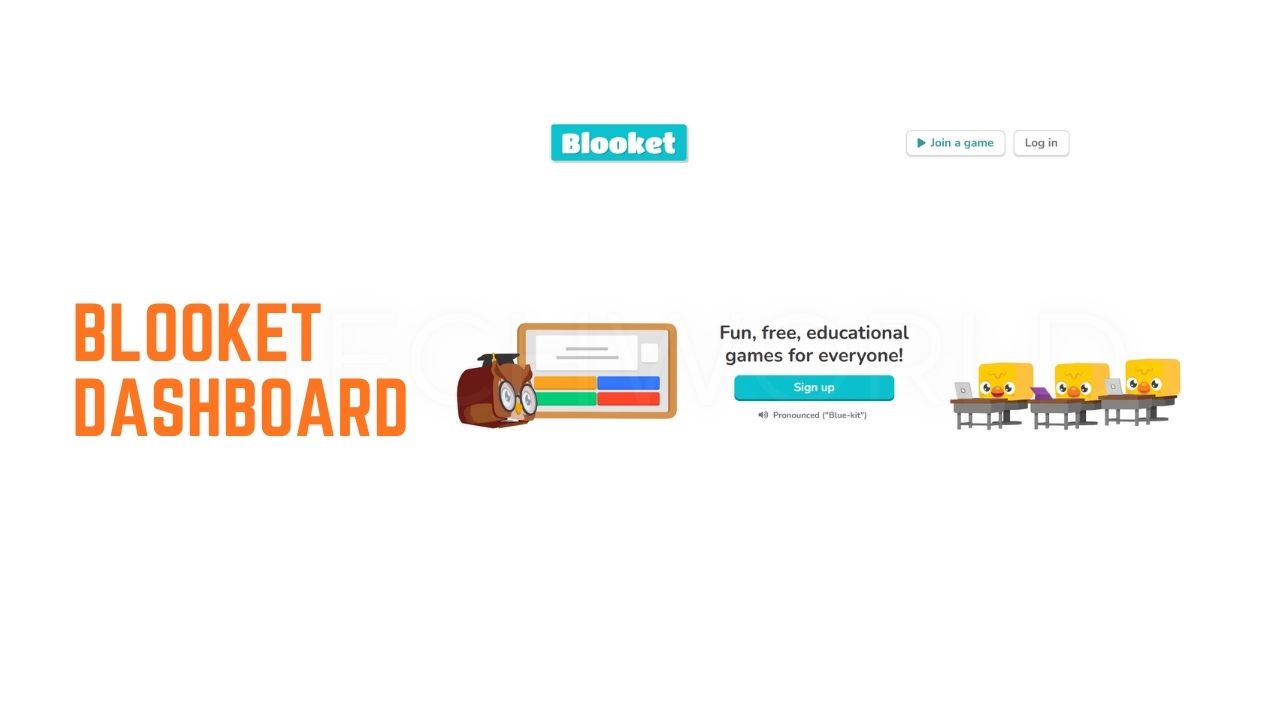
Open your preferred browser and visit the official Blooket website. Wait for the homepage to load, then look for the login or sign-up option. Make sure you are using the genuine platform rather than an unofficial website that imitates its appearance or requests unnecessary personal information.
Step 2: Log In to Your Account
Select the login option and enter your account credentials. If you are new to Blooket, follow the sign-up process and choose the appropriate account type. Teachers should use their teaching account to access classroom management tools, while students should follow their school’s instructions when creating or using an account.
Step 3: Explore the Main Dashboard
After signing in, explore the available menu options and account shortcuts. Depending on your account, you may see sections for Discover, My Sets, hosting games, assignments, or activity history. Take a moment to understand where each feature is located before starting a classroom session. The layout may change as Blooket updates its platform.
Key Features of the Blooket Dashboard
Discover Question Sets
The Discover section helps users find existing question sets created for different subjects and learning levels. Teachers can search for topics such as mathematics, science, history, vocabulary, or general knowledge instead of preparing every question from scratch. Reviewing a set before using it helps ensure that the questions match the lesson and students’ abilities.
Discover can save preparation time, but not every publicly available set will be suitable for every classroom. Check the wording, correct answers, difficulty, and educational relevance before using a set with students. If the available content does not match your learning goals, you can create your own questions or use an existing set as a starting point.
Create and Manage Question Sets
The Create and My Sets sections help users prepare and organize educational content. A question set typically contains questions, possible answers, and the correct response. Teachers can create content for a particular lesson, review their saved sets, and make changes when needed. Clear titles help distinguish between different subjects, classes, and learning activities.
Organizing question sets makes future lessons easier to prepare. For example, a teacher could create separate sets for fractions, multiplication, grammar, and science vocabulary. Before saving or sharing a set, check every question for accuracy and clarity. The available editing, copying, and organization tools may vary depending on the account and subscription plan.
Host Live Games
The Host feature allows a user with the necessary account access to start a live game using a question set. After choosing a suitable set and an available game mode, the host configures the displayed settings and starts the session. Blooket provides joining information, such as a Game ID, that participants can use to enter the game.
Live games can be useful for reviewing lessons, practising important facts, and encouraging participation. Before starting, explain the rules and make sure students know how to join. Choose a game mode that fits the lesson and available time. Teachers should also consider whether the activity rewards speed, accuracy, strategy, or a combination of these elements.
Assign Activities and Review Results
Depending on the available features, teachers can assign certain Blooket activities for students to complete independently instead of joining a live session. Assignments can support homework, revision, and additional practice outside normal classroom hours. Teachers should check the options provided for the selected game mode before assigning an activity.
Blooket also offers game reports and performance information for supported activities. These results can help teachers identify questions that students answered incorrectly and topics that may need further explanation. The level of detail available can depend on the plan and feature being used. Game scores are useful feedback, but they should not be the only measure of a student’s understanding.
How to Create a Game Using the Blooket Dashboard
Creating a Blooket game starts with selecting or preparing a question set. Sign in to your account and open My Sets or Discover, depending on whether you want to use your own content or find an existing set. If you choose a public set, review the questions and answers before using it with a class.
Once you have selected a suitable set, open it and choose the Host option when available. Select a supported game mode and review the settings displayed on the screen. When you are ready, start the hosting process and share the generated joining information with participants. After students enter the lobby, begin the game and monitor the session.
How Teachers Can Use the Blooket Dashboard
Teachers can use Blooket to make revision sessions more interactive and provide students with another way to practise important concepts. A teacher might prepare a short vocabulary quiz before a language lesson, use mathematics questions for revision, or create a science activity to reinforce recently taught material. Interactive games can add variety to lessons and encourage students to participate.
The dashboard can also help teachers plan follow-up activities. After a game, review any available reports to identify difficult questions or common misunderstandings. Use this information to decide whether students need another explanation, a different example, or more practice. Keep activities aligned with the lesson’s objectives so that entertainment supports learning rather than distracting from it.
How Students Can Use Blooket
Students can use Blooket to practise school subjects through question-based games. When a teacher hosts a live session, students can usually join using the Game ID and instructions provided by the teacher. Some sessions may allow participation without creating a personal account, while other features require signing in. Students should follow their teacher’s instructions and any school account rules.
Blooket can also support independent practice when suitable question sets or activities are available. Students can review topics they find difficult, repeat practice activities, and use feedback to identify mistakes. The goal should be to understand why an answer is correct rather than simply finish first. Combining Blooket activities with class notes, textbooks, and other study methods can produce a more balanced learning routine.
Read New Xbox Release Date Latest News and Expected Launch
Common Blooket Dashboard Problems and Solutions
Login Problems
If you cannot sign in, check that your username or email address and password are entered correctly. Make sure you are using the right account and that your internet connection is working. If you have forgotten your password, use the official account recovery process if it is available. Never share your password or verification details with someone claiming to offer unofficial account support.
Dashboard Not Loading
A dashboard that does not load correctly may be affected by a temporary connection problem, browser issue, or service interruption. Refresh the page and check whether other websites work normally. If the problem continues, try updating your browser, opening Blooket in another supported browser, or clearing the browser’s cached data. Save any unfinished work before refreshing whenever possible.
Missing Features or Game Options
If a feature or game mode is missing, confirm that you are signed in and check which account type and subscription plan you are using. Some tools may be available only for particular plans, activities, or account roles. The platform’s layout may also change after updates. Review the current options shown in your account before assuming that a feature has been removed.
Students Cannot Join a Game
If students cannot enter a live session, verify that the Game ID has been shared correctly and that the game is still accepting participants. Ask students to check their internet connections and enter the code carefully. If necessary, generate a new session and share the updated joining details. Teachers should also make sure that students are using the correct game-joining screen.
Tips for Getting the Most Out of Blooket
Start with a clear learning objective before selecting a game mode or question set. Decide whether students need to memorise key facts, practise calculations, review vocabulary, or apply a concept. Choose questions that match their current level and avoid including too much new material in a single activity. A short, focused game is often easier to connect to a specific lesson goal.
It is also helpful to review your question sets regularly and correct any confusing or inaccurate answers. Give students time to discuss difficult questions after a game instead of moving immediately to the next activity. Use performance information as a guide for further teaching, not as a complete judgment of ability. Finally, keep student privacy and school technology policies in mind when organizing online classroom activities.
Frequently Asked Questions
What Is the Blooket Dashboard Used For?
The Blooket Dashboard helps users access educational question sets and interactive learning activities. Depending on the account, users may create content, discover existing sets, host live games, complete activities, and review available results.
Is a Blooket Account Required to Play?
Not always. Participants can often join a teacher-hosted live game using a Game ID without creating an account. However, creating question sets, hosting games, and accessing personalized features generally requires signing in. The exact requirements depend on the activity.
How Do Teachers Create Games in Blooket?
Teachers can sign in, choose an existing question set from Discover or My Sets, and select Host when available. They then choose a supported game mode, review the settings, and share the generated joining information with students.
Can Students Access the Blooket Dashboard?
Yes. Students can use supported account features to participate in games and manage their learning activities. Their available options may differ from those shown to teachers, who have additional tools for creating content and managing classroom sessions.
Is Blooket Free to Use?
Blooket offers a free plan with core learning and game features. A paid Blooket Plus subscription provides additional benefits, and the available tools may differ between plans. Review the current plan details to understand any player limits or feature restrictions.
Why Is the Blooket Dashboard Not Working?
Common reasons include an unstable internet connection, an outdated browser, cached browser data, incorrect login details, or a temporary service issue. Refresh the page, check your connection, and try another supported browser. If the problem continues, consult the platform’s official support resources.
Explore More BTECH WORLD