
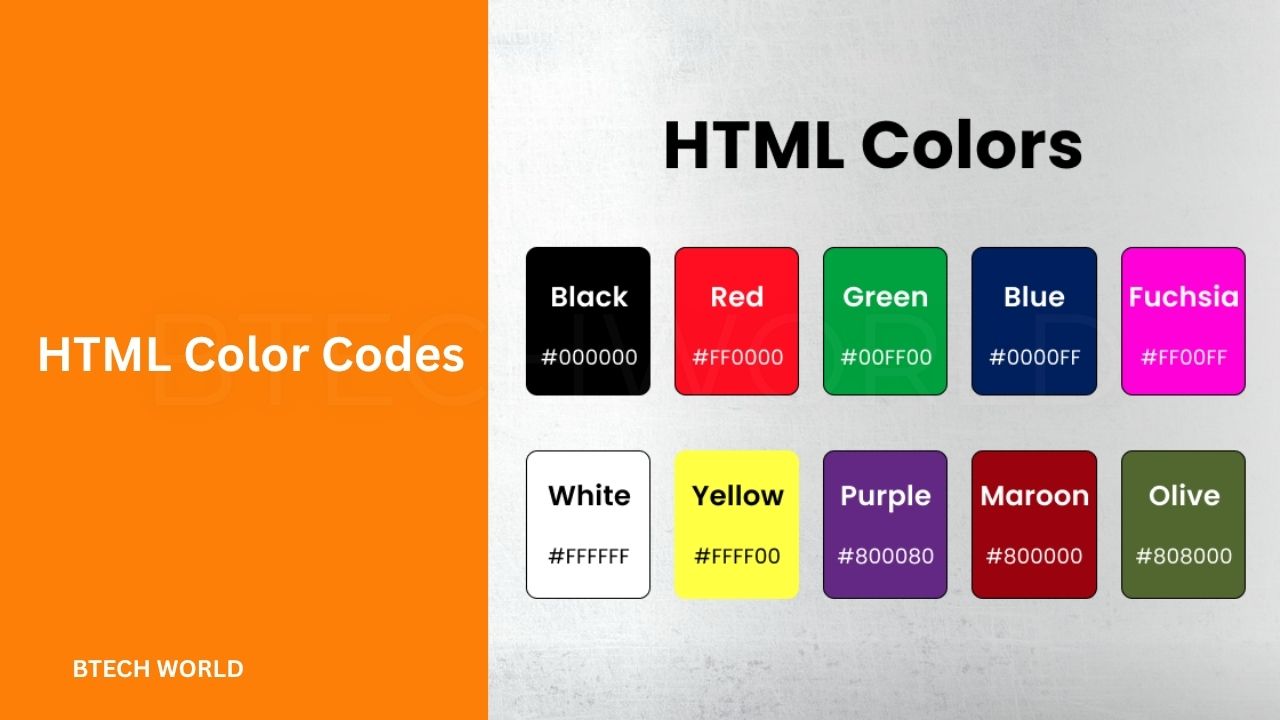
HTML Color Codes for Beginners: Syntax, Examples, and Color Combinations

HTML color codes help web developers add attractive colors to websites. They can change the appearance of text, backgrounds, borders, buttons, and other page elements. Whether you are creating a personal blog, business website, or online store, understanding color codes makes it easier to build a consistent and appealing design.
Although people commonly call them HTML color codes, developers usually apply colors to HTML elements through CSS. CSS supports several color formats, including HEX, RGB, HSL, and predefined color names. Each format offers a different way to describe a color, giving developers flexibility when designing web pages.
In this beginner-friendly guide, you will learn how HTML color codes work, explore practical examples, understand popular color combinations, and discover how to use colors effectively in web design.
What Are HTML Color Codes?
HTML color codes are values used to define colors for elements displayed on a web page. Developers use them to style headings, paragraphs, navigation bars, buttons, backgrounds, and other interface components.
For example, a website might use dark blue for its navigation bar, white for the main background, and orange for important buttons. These colors help establish a visual identity and make the website easier to navigate.
CSS provides the rules for applying colors to HTML elements. A simple example looks like this:
<!DOCTYPE html>
<html>
<head>
  <style>
    body {
      background-color: #f4f4f4;
    }

    h1 {
      color: #2563eb;
    }

    p {
      color: #333333;
    }
  </style>
</head>
<body>
  <h1>Welcome to My Website</h1>
  <p>This paragraph uses a dark text color.</p>
</body>
</html>
In this example, the page has a light gray background, a blue heading, and dark gray paragraph text. The CSS properties control the colors, while the HTML elements provide the page structure.
Understanding the Main Types of HTML Color Codes
Web developers can choose from several color formats. The most common options are HEX, RGB, RGBA, HSL, HSLA, and named colors.
1. HEX Color Codes
HEX codes are among the most widely used color formats in web design. They begin with a hash symbol (#) followed by six hexadecimal characters.
A standard HEX color follows this structure:
color: #RRGGBB;The first two characters represent red, the next two represent green, and the final two represent blue. Each pair can range from 00 to FF.
For example:
h1 {
  color: #ff0000;
}

p {
  color: #0000ff;
}

body {
  background-color: #ffffff;
}
Here, #ff0000 represents red, #0000ff represents blue, and #ffffff represents white.
Some colors also support a shorter three-character HEX format. For example, #fff is equivalent to #ffffff, while #000 is equivalent to #000000. This shorter format works when each character in a pair is repeated.
2. RGB Color Codes
RGB stands for Red, Green, and Blue. This format defines a color by assigning an intensity to each of the three primary light colors.
Each value normally ranges from 0 to 255.
h1 {
  color: rgb(255, 0, 0);
}

p {
  color: rgb(0, 128, 0);
}

body {
  background-color: rgb(240, 240, 240);
}
The first rule produces red text, the second creates green text, and the third applies a light gray background.
RGB can be useful when you want to adjust individual color channels. Increasing the red value makes a color more red, while lowering the blue value reduces its blue component.
3. RGBA Color Codes
RGBA adds an alpha channel to RGB. The alpha value controls transparency, with 0 representing fully transparent and 1 representing fully opaque.
For example:
.overlay {
  background-color: rgba(0, 0, 0, 0.5);
}
This creates a black background with 50% opacity. The content behind the overlay can remain partially visible.
RGBA is useful for modal backgrounds, image overlays, transparent panels, and subtle shadows. Modern CSS also supports alpha values in other color formats, including HEX and HSL.
4. HSL Color Codes
HSL stands for Hue, Saturation, and Lightness. Instead of describing a color through red, green, and blue values, it uses three properties that can feel more intuitive when adjusting colors.
- Hue: The color type, represented as an angle from 0 to 360 degrees.
- Saturation: The intensity of the color, expressed as a percentage.
- Lightness: How light or dark the color appears, also expressed as a percentage.
Example:
button {
  background-color: hsl(220, 90%, 55%);
  color: white;
}
This creates a vivid blue button with white text. Changing the lightness value can produce a lighter or darker blue without changing the hue.
5. Named HTML Colors
CSS also supports predefined color names. This format is easy for beginners because the color name describes the intended result.
h1 {
  color: navy;
}

p {
  color: darkgreen;
}

button {
  background-color: orange;
}
Named colors are convenient for simple projects and quick experiments. However, HEX, RGB, and HSL often provide more precise control over a website’s color palette.
Popular HTML Color Codes List
The following table includes common colors that developers use for text, backgrounds, buttons, and website branding.
| Color | HEX Code | Common Use |
|---|---|---|
| Black | #000000 | Text and dark backgrounds |
| White | #FFFFFF | Page backgrounds and text on dark surfaces |
| Red | #FF0000 | Alerts and warnings |
| Blue | #0000FF | Links and visual accents |
| Green | #008000 | Success messages |
| Yellow | #FFFF00 | Highlights and attention |
| Orange | #FFA500 | Buttons and calls to action |
| Purple | #800080 | Branding and decorative elements |
| Gray | #808080 | Secondary text and borders |
| Light Gray | #D3D3D3 | Panels and dividers |
| Navy | #000080 | Headers and navigation |
| Teal | #008080 | Modern interface accents |
| Pink | #FFC0CB | Decorative backgrounds |
| Brown | #A52A2A | Warm design elements |
These values can be used directly in CSS. You can also adjust them to match your website’s branding and accessibility requirements.
How to Use HTML Color Codes in a Web Page
Applying colors is straightforward once you understand basic CSS properties. You can add CSS inside a style element, place it in an external stylesheet, or use inline styles for simple demonstrations.
Change Text Color
Use the color property to change the color of text.
<p style="color: #2563eb;">
  This text appears blue.
</p>
For larger projects, applying styles through a stylesheet is usually easier to maintain than adding inline styles to every element.
Change Background Color
The background-color property changes the background of an element.
body {
  background-color: #f8fafc;
}

section {
  background-color: #e0f2fe;
}
The first rule gives the page a light background, while the second adds a pale blue background to each targeted section.
Style Buttons and Borders
Color codes can also help important interface elements stand out.
button {
  background-color: #2563eb;
  color: #ffffff;
  border: 2px solid #1d4ed8;
  padding: 10px 18px;
  border-radius: 6px;
}
This example creates a blue button with white text, a darker blue border, and rounded corners. Consistent button styling can make a website feel more professional.
Best HTML Color Combinations for Website Design
Choosing individual colors is only part of the process. The colors must also work well together. A balanced palette can improve readability, establish a brand identity, and guide visitors toward important content.
#2563EB Blue and White
A clean, professional combination suitable for technology websites, business pages, and educational platforms. Use blue for buttons and headings, with white as the main background.
#166534 Green and Light Gray
A natural, balanced palette that works well for environmental projects, wellness brands, and finance dashboards. Light gray can soften the overall appearance.
#111827 Dark Gray and Orange
This combination creates a bold, modern appearance. Use dark gray for the main interface and orange for selected buttons or important highlights.
#7C3AED Purple and White
Purple adds personality to creative portfolios, digital products, and lifestyle websites. White space helps prevent the design from feeling too busy.
A useful approach is to select one primary color, one secondary color, a neutral background, and an accent color. Use these consistently rather than introducing many unrelated colors.
Common Mistakes to Avoid When Using Color Codes
Even a technically correct color code can create design problems if it is used carelessly. Avoid these common mistakes when building a website.
Using low-contrast text: Light gray text on a white background can be difficult to read. Choose text and background colors with sufficient contrast, especially for important information.
Mixing too many colors: A page with many competing colors can look inconsistent. Build a small palette and reserve strong accent colors for important elements.
Confusing HEX and RGB syntax: HEX values require a hash symbol, while RGB values use a function such as rgb(37, 99, 235). Use the correct syntax for each format.
Ignoring transparency: A transparent color may look different depending on the background behind it. Test overlays and transparent elements against the actual page design.
Using color as the only signal: Do not rely on red or green alone to communicate errors or success. Add descriptive text, icons, or labels so users can understand the message.
How to Choose Accessible Website Colors
Accessibility should be part of the color-selection process. A visually attractive design is not effective if visitors cannot read its content.
For normal text, the Web Content Accessibility Guidelines (WCAG) recommend a contrast ratio of at least 4.5:1 for Level AA compliance. Large text generally requires at least 3:1. These thresholds help people with reduced vision read content more comfortably.
You can check contrast using an online contrast checker or a design tool that calculates the ratio between foreground and background colors. Test headings, paragraph text, buttons, navigation links, and form labels.
Also, review your design on different screens. Colors may appear brighter or darker depending on display settings. Combining good contrast with clear typography and consistent spacing creates a more accessible experience.
Conclusion
HTML color codes make it possible to create attractive and consistent website designs. Although the term is commonly used, colors are generally applied to HTML elements through CSS. HEX, RGB, RGBA, HSL, and named colors each offer different ways to define them.
Beginners can start with HEX values because they are compact and widely supported. As your skills improve, experiment with RGB and HSL, build reusable color palettes, and test contrast to keep your website readable. With practice, you can use color codes to create interfaces that look professional and work well for a wide range of visitors.
Frequently Asked Questions (FAQs)
1. What are HTML color codes?
HTML color codes are values used to specify colors for website elements. Developers typically apply them through CSS using formats such as HEX, RGB, HSL, and named colors.
2. What is the most common HTML color code format?
HEX is one of the most common formats. It uses a hash symbol followed by three or six hexadecimal characters, such as #000000 for black and #FFFFFF for white.
3. How do I change text color in HTML?
You can use CSS’s color property. For example, p { color: blue; } makes paragraph text blue. You can replace blue with a HEX, RGB, or HSL value.
4. What is the difference between HEX and RGB?
HEX represents a color with hexadecimal characters, such as #FF0000. RGB uses separate red, green, and blue values, such as rgb(255, 0, 0). Both can represent the same color.
5. How do I choose the right color combination for a website?
Start with a primary brand color, a neutral background, a readable text color, and one accent color. Check contrast, maintain consistency, and test the combination across different page elements.
Explore More BTECH WORLD